
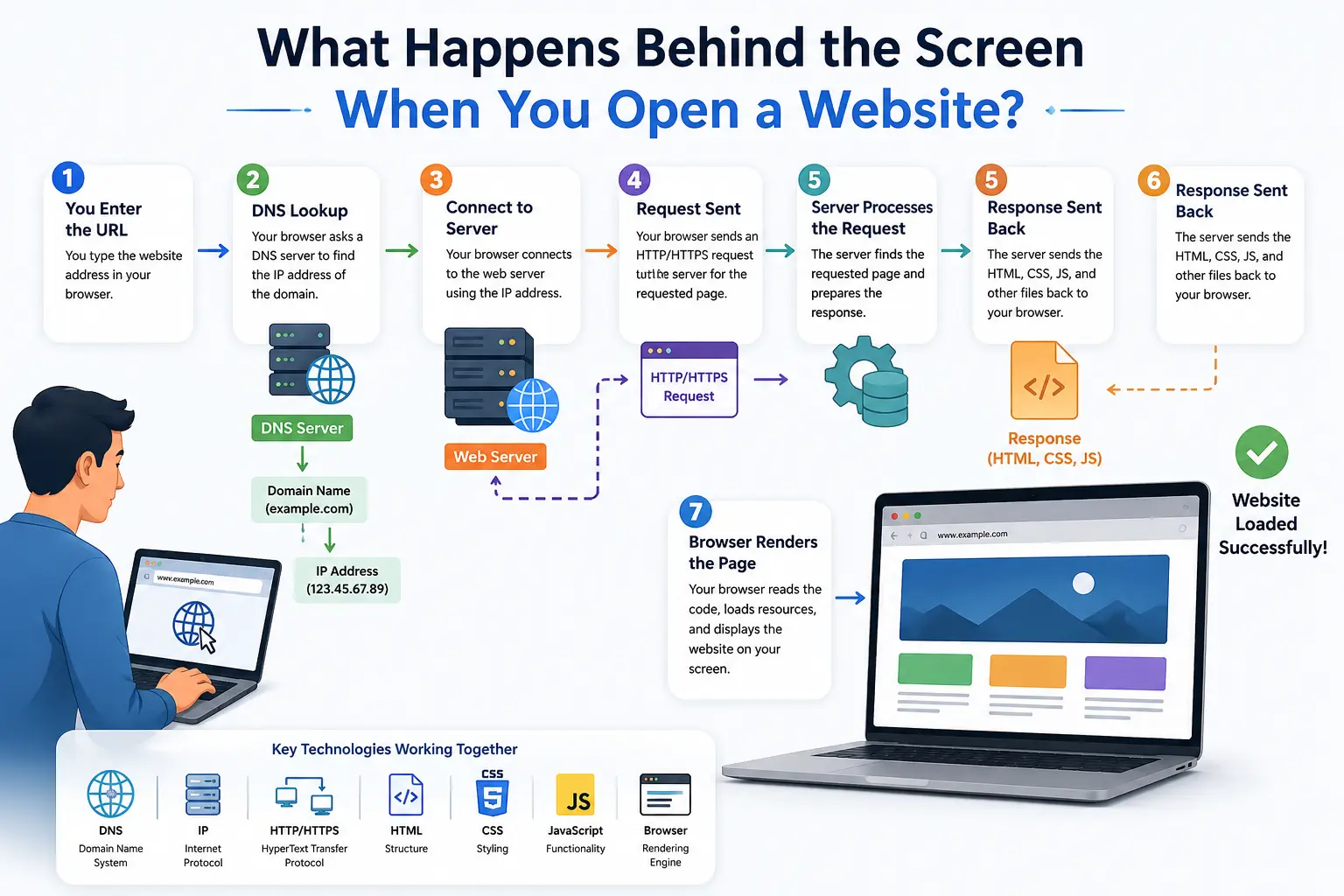
Every time you type a URL and press Enter, a website appears in your browser within a second or two. Behind that simple action, dozens of technical steps happen in sequence: DNS lookup, server connection, encryption, HTTP requests, backend processing, and browser rendering all work together to turn a line of text into a fully loaded webpage.
Understanding how websites work isn’t just useful for developers. Business owners, marketers, and anyone managing a website benefit from knowing what happens between typing a URL and seeing the final page, because it directly affects website speed, security, and user experience. This guide breaks down the entire process – from the moment you press Enter to the moment pixels appear on your screen – in a clear, step-by-step way that’s easy to follow whether you’re new to web technology or already familiar with the basics.
By the end, you’ll understand DNS resolution, browser rendering, web server responses, HTTP and HTTPS, and the role of CDNs, databases, and Core Web Vitals in shaping the websites you use every day.
Step 1: You Enter a URL – What Happens First?
When you type a URL and hit Enter, your browser doesn’t go straight to the internet. It first breaks the URL into parts and checks its own memory for any relevant saved data before sending a single request. This initial parsing and cache-checking step determines how the rest of the loading process unfolds.
➤ How the Browser Parses the Website URL (Protocol, Domain, and Path)
A URL, or Uniform Resource Locator, is made up of several distinct parts, and the browser reads each one separately to understand what to do next.
Take https://www.example.com/blog/article as an example:
- Protocol (https://) – tells the browser to use a secure, encrypted connection.
- Domain name (www.example.com) – identifies the website’s address on the internet.
- Path (/blog/article) – points to the specific page or resource being requested.
The browser also checks for a port number (usually hidden, defaulting to 443 for HTTPS or 80 for HTTP) and any query parameters after a ?. Once parsed, the browser knows it needs to find the server hosting example.com and request the /blog/article resource specifically, over an encrypted connection.
➤ Checking Browser Cache for Previous Website Data
Before making any network request, the browser checks its local cache to see if it already has a stored copy of the page, its DNS resolution, or its assets.
Browsers store several types of cached data:
- DNS cache – previously resolved domain-to-IP mappings.
- Resource cache – HTML, CSS, JavaScript, images, and fonts from earlier visits.
- HTTP cache headers – instructions from the server on how long content should be considered “fresh.”
If valid cached data exists, the browser can skip several steps entirely and render part or all of the page instantly. This is one reason repeat visits to a website usually load faster than the first visit.
Step 2: DNS Lookup – How a Website Name Becomes an IP Address
Domain names exist for human convenience, but computers communicate using IP addresses. The DNS lookup process translates a readable domain name like example.com into a numerical IP address such as 93.184.216.34, allowing your browser to locate the correct server on the internet.
♦ What is DNS and Why Does the Internet Need It?
DNS, or the Domain Name System, works like a phone book for the internet. It maps human-friendly domain names to the IP addresses that computers use to identify and communicate with each other.
Without DNS, users would need to memorize strings of numbers instead of names to visit any website. DNS servers store and distribute these domain-to-IP mappings across a global, distributed network, making domain name resolution fast and reliable even at massive scale.
♦ The Step-by-Step DNS Resolution Process
Domain name resolution typically happens in this order:
- Browser cache check – the browser looks for a recent DNS record it already has stored.
- Operating system cache check – if not found, the OS checks its own DNS cache.
- Recursive DNS resolver query – usually provided by your ISP or a public DNS service like Cloudflare DNS or Google DNS, this resolver takes over the search.
- Root DNS server – points the resolver to the correct top-level domain (TLD) server (like .com or .org).
- TLD DNS server – directs the resolver to the authoritative DNS server for the specific domain.
- Authoritative DNS server – returns the actual IP address associated with the domain.
This entire sequence usually completes in a fraction of a second, even though it may involve several different servers located around the world.
♦ How DNS Caching Speeds Up Future Visits
Once a domain name is resolved, the resulting IP address is cached at multiple levels – browser, operating system, router, and ISP – so future requests skip the full resolution process.
DNS records include a Time to Live (TTL) value that determines how long the cached result remains valid. Shorter TTLs allow faster updates when a website changes servers, while longer TTLs reduce lookup time for returning visitors. This caching layer is a major reason why websites tend to load faster after the first visit.
Step 3: Your Browser Connects to the Web Server
Once the browser knows the IP address, it needs to establish an actual network connection to the server before any content can be exchanged. This involves locating the correct server and completing a technical handshake to open a reliable communication channel.
► Finding the Web Server Using the IP Address
With the IP address in hand, the browser routes the connection request across the internet’s distributed network of routers and switches, each forwarding the request closer to its destination based on Internet Protocol (IP) rules.
If the website uses a CDN (Content Delivery Network), the browser may actually connect to a server geographically closer to the user rather than the website’s original server, reducing network latency and improving load times.
► The TCP Handshake: Establishing a Connection
Before any data is transferred, the browser and server perform a TCP handshake – a three-step process that confirms both sides are ready to communicate reliably:
- SYN – the browser sends a synchronization request to the server.
- SYN-ACK – the server acknowledges the request and sends its own synchronization signal back.
- ACK – the browser confirms, and the connection is officially established.
This handshake is part of the TCP/IP protocol suite, which underlies nearly all internet infrastructure and ensures data packets are transmitted accurately and in order.
► What is a Web Server and How Does It Listen for Requests?
A web server is software (and often the physical hardware running it) designed to store website files and respond to incoming requests. Popular web server software includes Apache, Nginx, and Microsoft IIS.
Web servers continuously “listen” on specific network ports (commonly port 80 for HTTP and 443 for HTTPS) for incoming connection requests. Once a connection is established through the TCP handshake, the server is ready to receive and respond to HTTP requests from the browser.
Step 4: How HTTPS and SSL/TLS Encryption Keep Data Secure
Modern websites overwhelmingly use HTTPS instead of plain HTTP, encrypting all data exchanged between the browser and server. This protects sensitive information – like login credentials and payment details – from being intercepted by third parties, which directly ties into the broader importance of data privacy online.
✸ Understanding the SSL/TLS Handshake Process
Immediately after the TCP handshake, if the connection uses HTTPS, an additional SSL/TLS handshake takes place:
- The browser requests the server’s SSL certificate.
- The server sends its certificate, which contains its public encryption key.
- The browser verifies the certificate’s authenticity with a trusted certificate authority.
- Both sides agree on an encryption method and generate session keys.
- The encrypted connection is established, and secure data transfer can begin.
This process typically takes just milliseconds but is essential for establishing trust between the browser and server.
✸ How Encryption Protects Data in Transit
Once the SSL/TLS handshake completes, all data sent between the browser and server – including HTML, form submissions, cookies, and API requests – is encrypted. Even if intercepted, this data appears as unreadable, scrambled text without the correct decryption key.
This encryption layer is a core part of modern security protocols, and it’s increasingly reinforced by AI-driven monitoring systems; in fact, AI in cybersecurity is now widely used to detect unusual encrypted traffic patterns that could indicate an attack.
✸ HTTP vs HTTPS: Why Secure Connections Matter
| Feature | HTTP | HTTPS |
|---|---|---|
| Data encryption | None | Full SSL/TLS encryption |
| SSL certificate required | No | Yes |
| Data vulnerability | High (readable if intercepted) | Low (encrypted in transit) |
| Browser trust indicators | Often flagged as “Not Secure” | Shown as secure/padlock icon |
| SEO impact | Negative | Positive (Google ranking factor) |
| Recommended for | Not recommended for live sites | Standard for all modern websites |
HTTPS has become the default expectation for websites handling any form of user data, and browsers actively warn visitors when a site still uses unencrypted HTTP.
Step 5: The Browser Sends an HTTP Request
Once a secure connection is established, the browser sends an HTTP request asking the server for the specific resource – usually an HTML page – needed to display the website.
✦ What is an HTTP Request and How Is It Structured?
An HTTP request is a structured message the browser sends to the server, and it always contains three key parts: a request line (method, path, and protocol version), headers (metadata about the request), and, optionally, a body (data being sent, such as form input).
A typical request line looks like this: GET /blog/article HTTP/1.1, telling the server exactly which method to use, which resource to retrieve, and which protocol version is in use.
✦ Common HTTP Methods, Headers, and Request Data
The most common HTTP methods include:
- GET – requests data from the server (used when loading a page).
- POST – sends data to the server (used when submitting a form).
- PUT/PATCH – updates existing data on the server.
- DELETE – removes data from the server.
Requests also include headers carrying important context, such as:
- User-Agent – identifies the browser and device.
- Accept – specifies which content types the browser can handle.
- Cookie – sends any stored cookies relevant to the domain.
- Authorization – includes login or API credentials when needed.
This combination of method, headers, and (if applicable) request body gives the server everything it needs to generate an appropriate response.
Step 6: What Happens Inside a Web Server When You Request a Page
Once the server receives the HTTP request, it needs to figure out how to respond – whether by simply serving a stored file or by running backend logic to build the page dynamically.
➤ How the Server Processes the Request: Static vs Dynamic Content
Static content (like plain HTML files, images, or PDFs) is served directly from storage without any processing – the server just retrieves the file and sends it back.
Dynamic content requires the server to run backend logic before responding. This typically involves an application server executing code (in languages like PHP, Python, Node.js, or Java), often pulling data from a database, and assembling a customized HTML response for that specific request.
➤ Role of Databases and Backend Application Logic
Many websites rely on a database server to store and retrieve information – user accounts, product listings, blog posts, or order history. When a dynamic page is requested, backend application logic queries the database, processes the results, and formats them into the final response.
This backend logic also handles tasks like:
- Validating user input
- Checking authentication and permissions
- Applying business rules
- Calling external APIs when additional data is needed
- Formatting the final output as HTML, JSON, or another format
This is one reason website hosting plans differ significantly – a site relying heavily on database queries and backend logic needs more processing power than a purely static site.
➤ Creating and Sending the HTTP Response
After processing, the server packages its answer into an HTTP response, which includes:
- Status code – indicates success or failure (e.g., 200 OK, 404 Not Found, 500 Internal Server Error).
- Response headers – metadata about the response, such as content type and caching rules.
- Response body – the actual content, typically HTML for a webpage.
This response then travels back across the same encrypted connection to the browser that made the original request.
Step 7: How the Browser Processes HTML, CSS, and JavaScript
Once the browser receives the HTML response, it begins the process of interpreting the code and turning it into a visual, interactive webpage. This involves three core technologies working together.
♦ How HTML Creates the Structure of a Webpage
HTML (HyperText Markup Language) defines the structure and content of a webpage – headings, paragraphs, images, links, forms, and other elements. As the browser reads the HTML line by line, it builds a structural model of the page in memory, identifying each element and how it relates to the others.
♦ How CSS Controls Design and Layout
CSS (Cascading Style Sheets) controls how HTML elements look and are positioned – colors, fonts, spacing, layout grids, and responsive behavior across devices. The browser reads CSS rules alongside the HTML structure to determine exactly how each element should be displayed visually.
♦ How JavaScript Adds Interactivity and Dynamic Features
JavaScript adds behavior and interactivity – form validation, dropdown menus, animations, and dynamic content updates without reloading the page. Client-side rendering, where JavaScript builds or updates page content directly in the browser rather than relying entirely on the server, has become increasingly common in modern web applications built with frameworks like React, Vue, or Angular.
Together, HTML, CSS, and JavaScript form the foundation of frontend development, while the server-side logic discussed earlier represents backend development – the two communicating constantly through HTTP requests and API calls.
Step 8: How Images, Videos, and Other Resources Are Loaded
An HTML page rarely arrives complete on its own. It typically references dozens of additional resources that the browser must separately request and load.
► How Browsers Request Additional Website Resources
As the browser parses the HTML, it discovers references to external resources – images, videos, stylesheets, fonts, and JavaScript files – and issues separate HTTP requests for each one. Modern browsers can request multiple resources in parallel to speed up this process, rather than waiting for each one to finish before starting the next.
► Image Optimization, Compression, and Lazy Loading Techniques
Because images and videos are often the heaviest part of a webpage, optimization techniques play a major role in page speed:
- Compression – reducing file size without significant quality loss.
- Modern formats – using formats like WebP or AVIF instead of older JPEG/PNG when possible.
- Lazy loading – delaying the loading of off-screen images until the user scrolls near them.
- Responsive images – serving different image sizes based on device screen size.
These techniques directly affect Core Web Vitals scores and overall page speed optimization.
► How CDNs Help Deliver Website Content Faster
A CDN (Content Delivery Network) stores cached copies of website resources across multiple servers located around the world. Instead of every user requesting files from a single origin server, they’re served from the nearest CDN location, significantly reducing load times and server strain – especially valuable for websites with global audiences.
Step 9: The Final Rendering – How a Webpage Appears on Your Screen
Once all the necessary code and resources have been retrieved, the browser’s rendering engine takes over, transforming raw HTML, CSS, and JavaScript into the visual page you actually see and interact with.
✸ Building the DOM and CSSOM Trees
The browser first converts the HTML into the DOM (Document Object Model) – a tree-like structure representing every element on the page. Simultaneously, it converts CSS rules into the CSSOM (CSS Object Model), representing how each element should be styled.
✸ The Role of the Browser Rendering Engine
The rendering engine (such as Blink in Google Chrome, Gecko in Mozilla Firefox, or WebKit in Safari) combines the DOM and CSSOM into a single “render tree,” which contains only the visible elements along with their computed styles. This browser engine is responsible for translating that combined structure into what ultimately appears on screen.
✸ The Rendering Pipeline: Layout, Paint, and Compositing to Final Pixels
The rendering pipeline follows a consistent sequence:
- Layout (reflow) – the browser calculates the exact size and position of every element on the page.
- Paint – the browser fills in pixels for text, colors, images, borders, and shadows based on the layout.
- Compositing – separate layers are combined in the correct order and rendered onto the screen as the final, visible webpage.
If JavaScript later modifies the page (adding content, changing styles), the browser may repeat parts of this pipeline, which is why excessive DOM manipulation can slow down a page’s perceived performance.
How Cookies, Cache, and Browser Storage Improve Your Experience
Browsers don’t just render pages – they also retain information locally to make future visits faster and more personalized. This is handled through several distinct storage mechanisms.
1. How Browser Cache Speeds Up Website Loading
Browser cache stores copies of previously downloaded resources – images, CSS, JavaScript files – so they don’t need to be re-downloaded on repeat visits, as long as the server indicates the cached version is still valid.
2. How Cookies Store User Preferences and Login Information
Cookies are small text files a website stores in the browser to remember information between visits, such as login sessions, language preferences, shopping cart contents, or tracking data for analytics and advertising.
3. Understanding Local Storage and Session Storage
Beyond cookies, modern browsers offer local storage and session storage – client-side storage mechanisms that let websites save larger amounts of data directly in the browser. Local storage persists until manually cleared, while session storage is cleared once the browser tab is closed. Both are commonly used in progressive web apps and JavaScript-heavy applications to reduce repeated server requests.
Why Website Speed Depends on What Happens Behind the Screen
Every step covered so far – DNS lookup, server response time, encryption overhead, resource loading, and rendering – contributes directly to how fast a website feels to the end user.
✦ Factors That Affect Website Loading Speed
Common factors influencing website performance include:
- Web hosting quality and server response time
- Number and size of HTTP requests
- Use (or absence) of a CDN
- Image and video optimization
- Amount and efficiency of JavaScript
- Database query performance
- Browser caching configuration
- Network latency between user and server
✦ How Developers Optimize Website Performance
Developers commonly apply these performance optimization techniques:
- Minifying and compressing CSS and JavaScript files
- Enabling server-side and browser caching
- Using a CDN to reduce latency
- Optimizing database queries and indexing
- Implementing lazy loading for images and videos
- Reducing the number of render-blocking resources
- Choosing reliable, appropriately scaled web hosting
Businesses that lack in-house technical resources often rely on website performance optimization services or a professional web development agency to implement these improvements correctly, particularly when comparing options like custom software vs. off-the-shelf software for their hosting and application infrastructure.
✦ Core Web Vitals and User Experience
Google measures user experience through Core Web Vitals, three specific metrics:
- Largest Contentful Paint (LCP) – measures how quickly the main content of a page loads. A good score is under 2.5 seconds.
- First Input Delay (FID) – measures how quickly a page responds to a user’s first interaction (increasingly being replaced by Interaction to Next Paint, or INP).
- Cumulative Layout Shift (CLS) – measures visual stability, flagging unexpected layout shifts while a page loads.
These metrics directly reflect the technical process described throughout this article, and they’re used by Google as ranking signals, making them relevant to both user experience and SEO. You can measure your own website’s Core Web Vitals using tools like Google PageSpeed Insights or other website speed test tools.
Conclusion
Opening a website triggers a fast, coordinated sequence of events: parsing the URL, resolving a domain name through DNS, connecting to a web server, securing the connection through SSL/TLS encryption, exchanging HTTP requests and responses, processing backend logic and databases, and finally rendering HTML, CSS, and JavaScript into a visible page on your screen.
Understanding this process – from client-server communication to browser rendering – helps explain why some websites load quickly while others lag, and why factors like hosting quality, CDN usage, and code optimization matter so much for both user experience and search visibility. Whether you’re building a website, choosing a hosting provider, or simply curious about how the internet works, knowing what happens behind the screen gives you a clearer picture of the technology powering nearly everything you do online.
FAQs
What happens when you type a website URL and press Enter?
The browser parses the URL into protocol, domain, and path, checks its cache for existing data, performs a DNS lookup to find the site’s IP address, connects to the web server, and requests the page – all typically within a second or two.
How does DNS convert a domain name into an IP address?
DNS resolution works by querying a series of servers – recursive resolver, root server, TLD server, and authoritative server – until the domain name is matched to its corresponding IP address, which the browser then uses to locate the correct web server.
How does a browser find and connect to a web server?
Once the browser has the server’s IP address, it establishes a connection through a TCP handshake (SYN, SYN-ACK, ACK), and if using HTTPS, follows this with an SSL/TLS handshake to encrypt the connection before any data is exchanged.
What is the difference between HTTP and HTTPS?
HTTP transmits data in plain, unencrypted text, while HTTPS encrypts all data using SSL/TLS, protecting sensitive information from interception. HTTPS is now the standard for virtually all websites and is also a recognized Google ranking factor.
What happens on the server side when a webpage is requested?
The server receives the HTTP request, determines whether the content is static or dynamic, runs backend application logic and database queries if needed, and sends back an HTTP response containing a status code, headers, and the page content.
How does a browser turn HTML, CSS, and JavaScript into a visible page?
The browser builds a DOM from the HTML and a CSSOM from the CSS, combines them into a render tree, then runs them through a layout, paint, and compositing pipeline to produce the final pixels displayed on screen.
What is browser cache and how does it improve loading speed?
Browser cache stores previously downloaded resources like images, CSS, and JavaScript files locally, allowing the browser to reuse them on repeat visits instead of re-downloading everything, which noticeably speeds up page load times.
Why do some websites load faster than others?
Loading speed depends on factors like hosting quality, server response time, use of a CDN, image optimization, JavaScript efficiency, database performance, and browser caching – websites optimized across all these areas consistently load faster than those that aren’t.